Showing posts with label IIS. Show all posts

Friday, April 10, 2015

Automatically capturing matching Failed Request Trace Logs

I was trying to troubleshoot a particularly challenging user identity issue with SharePoint and thought about using Failed Request Tracing which I will write about some other time.

While doing so, I wanted a way to grab the relevant fr*.xml files. I thought that it would streamline things if I could watch for these log files as they are created, run some filter against them and, if matched, copy the file to another folder (hopefully before the log rolls over).

Then I came across this post regarding "check folder for new files": https://social.technet.microsoft.com/Forums/scriptcenter/en-US/c75c7bbd-4e32-428a-b3dc-815d5c42fd36/powershell-check-folder-for-new-files
I adapted it to my purpose:

$destination = 'c:\Inetpub\Logs\FailedReqLogFiles\Temp'
$folder = 'C:\Inetpub\logs\FailedReqLogFiles\W3SVC2'

$filter = 'fr*.xml'
$fsw = New-Object IO.FileSystemWatcher $folder, $filter -Property @{
  IncludeSubdirectories = $false
  NotifyFilter = [IO.NotifyFilters]'FileName, LastWrite'
}

$onCreated = Register-ObjectEvent $fsw Created -SourceIdentifier FileCreated -Action {
  $path = $Event.SourceEventArgs.FullPath
  $name = $Event.SourceEventArgs.Name
  $changeType = $Event.SourceEventArgs.ChangeType
  $timeStamp = $Event.TimeGenerated
  $frlogfile = Get-Content $path
  $xml = [xml]$frlogfile
  $url = $xml.failedRequest.url
  Write-Host "The file $($name) was $($changeType) at $($timeStamp) with URL $($url)"
  if (***my matching conditions***) {
    Copy-Item $path -Destination $destination -Force -Verbose
  }
}

I definitely need to read up more on Get-Event, Get-EventSubscriber, Register-*Event cmdlets as well as the IO.FileSystemWatcher class. I think I could do some pretty cool stuff with them.


Tuesday, June 18, 2013

%systemdrive% in Powershell

I was just trying to write a script to manage IIS logs. I was able to get the log directory, but it comes back as  %SystemDrive%\inetpub\logs\LogFiles

Reading between the lines from a couple of posts, I found that I can use $env:SystemDrive in place of %SystemDrive%

So I can do something like this:
Import-Module WebAdministration
$website = Get-Website | Where-Object {$_.name -eq 'SharePoint - 443'}
$logfileDirectory = $website.logFile.directory -replace '%SystemDrive%', $env:SystemDrive
...

Friday, October 19, 2012

SharePoint 2013 HTTP Error 500 and 503

At some point after a reboot / iisreset or something else, I found that I could no longer get to my SharePoint sites nor to Central Administration. Each page was returning HTTP Error 500 or 503.

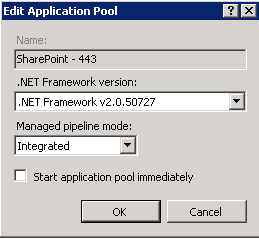
Of course, any time this happens, you need to take a look at IIS Admin. So opening it up, I see that all my application pools were offline. That's strange, it was just working a moment ago. Opening up the Basic Settings, I see this:
For some reason the Start application pool immediately box was unchecked. I then proceeded to check all of them and restarted my application pools and everything now works fine.

Weird.

Monday, July 11, 2011

Sluggish site, multiple authentication prompts - caused by stack overflow in IIS application pool worker process

On one of my servers, users were reporting:
  • Site was sluggish
  • Sometimes several authentication prompts

I check the site, and here is what I found:
In the ULS log, some messages logged by mssdmn.exe including:
CSTS3Accessor::Init: InitRequest failed for URL http://my-server/clientxyz/Pages/Home.aspx Return error to caller, hr=80041204  [sts3acc.cxx:546]  d:\office\source\search\native\gather\protocols\sts3\sts3acc.cxx

In the System log, regular Warning events logged by WAS, ID 5011 with the message:
A process serving application pool 'SharePoint - [my-server]80' suffered a fatal communication error with the Windows Process Activation Service. The process id was '12028'. The data field contains the error number.

In the Application log, regular Information events logged by Windows Error Reporting, ID 1001 with the message:
Fault bucket , type 0
Event Name: CLR20r3
Response: Not available
Cab Id: 0

Problem signature:
P1: w3wp.exe
P2: 7.5.7601.17514
P3: 4ce7afa2
P4: Microsoft.SharePoint
P5: 14.0.0.0
P6: 4bad8a7a
P7: 5cc9
P8: 0
P9: System.StackOverflowException
P10: 

Attached files:

These files may be available here:
C:\ProgramData\Microsoft\Windows\WER\ReportQueue\AppCrash_w3wp.exe_69fc9436e8b5896ded626b3ecf45dce746b517_3ed230ba

Analysis symbol: 
Rechecking for solution: 0
Report Id: 245f9c35-aaa0-11e0-96d0-f4ef7acc1a53
Report Status: 4

These all happened every 15 min - coincidentally the frequency of my incremental crawls

What can I conclude from this evidence? The W3WP is crashing. This would explain the users' various reports of sluggish behaviour and repeated authentication prompts. Now to figure out why the application pool process is crashing.

Some searching and I find this TechNet article Event ID 5011 - IIS Application Pool Availability under Troubleshoot Windows Server 2008 R2. So, I go ahead and download and install Debug Diagnostics x64. So far so good, but for some reason it runs only in Analyze Only mode. The documentation and help screens don't match the application. So, I thought I'd try the 32-bit one. This one matched the documentation, but is unable to attach to my w3wp.exe processes. Searching some more, I find that Debug Diagnostics is not supported on Windows 2008 R2 (major WTF moment!) and to follow How To: Collect a Crash dump of an IIS worker process on IIS 7.0 (and above) instead. So, I am now looking for WERCON. Well, of course this doesn't exist either, but I can read the .wer file with Notepad and this didn't give me much more information than the Application Log.

Frustrated, I give up on the diagnostics and try to do a little more experimenting. Is my FAST search crawler overloading the application pool? I create a Crawler Impact Rule to limit the crawler to one document request at a time. Still, this did not help.

Even more frustrated, I decide to see how much of an impact the crawl has. I go back to the ULS log and look at the URLs and try them out in a browser. Jackpot! The very first address I tried crashed the worker process. I try it a few more times and each time I got the same crash. 

Curious, I did more digging. The site was created at roughly the same time the WAS warning messages started showing up in the System log.

So, it turns out that one of my sites was causing the W3WP to crash and whenever the search crawler runs, it tries to crawl that site causing the crash. To workaround the problem, I added a new Crawl Rule to exclude the culprit site. This appears to have worked.

Wednesday, April 13, 2011

Parsing IIS logs with Powershell (because logparser not supported on Windows 2008)

I was very disappointed to find out that logparser is not supported on Windows 2008. So, I started to look for an alternative and found a TechNet post by Nick Goude on how to use Powershell to parse IIS logs.

I have, for the most part, simply lifted the code:


# Location of IIS LogFile
$File = "C:\inetpub\logs\LogFiles\W3SVC25824252\u_ex1104*.log"


# Get-Content gets the file, pipe to Where-Object and skip the first 3 lines.
$Log = Get-Content $File | where {$_ -notLike "#[D,S-V]*" }


# Replace unwanted text in the line containing the columns.
$Columns = (($Log[0].TrimEnd()) -replace "#Fields: ", "" -replace "-","" -replace "\(","" -replace "\)","").Split(" ")


# Count available Columns, used later
$Count = $Columns.Length


# Strip out the other rows that contain the header (happens on iisreset)
$Rows = $Log | where {$_ -notLike "#Fields"}


# Create an instance of a System.Data.DataTable
#Set-Variable -Name IISLog -Scope Global
$IISLog = New-Object System.Data.DataTable "IISLog"


# Loop through each Column, create a new column through Data.DataColumn and add it to the DataTable
foreach ($Column in $Columns) {
  $NewColumn = New-Object System.Data.DataColumn $Column, ([string])
  $IISLog.Columns.Add($NewColumn)
}


# Loop Through each Row and add the Rows.
foreach ($Row in $Rows) {
  $Row = $Row.Split(" ")
  $AddRow = $IISLog.newrow()
  for($i=0;$i -lt $Count; $i++) {
    $ColumnName = $Columns[$i]
    $AddRow.$ColumnName = $Row[$i]
  }
  $IISLog.Rows.Add($AddRow)
}


$IISLog

Now, if you save this to a file such as iislog.ps1, then you can run commands like:

.\iislog.ps1 | Select-Object csusername | Sort-Object -Property csusername | Get-Unique -AsString


Note, there are some glaring deficiencies:

  1. Parameterize the specification of log files
  2. Handle column name changes
  3. Handle extra headers (these are saved upon iisreset) - done
  4. Stream results back out so that they can be used in a pipeline

I hope to fix these soon, but need to get to sleep.

Wednesday, March 30, 2011

Repeated "Request for install time of Application Server Role, Web Server (IIS) Role" messages

I was installing SharePoint prerequisites and it seemed to hang at the first step "Configuring application server role, Web Server (IIS) Role". The PrerequisiteInstaller process seems to stall there forever. Looking at the installation log at \AppData\Local\Temp\2 under my profile, I saw over 2500 instances of the message: "Request for install time of Application Server Role, Web Server (IIS) Role". In the System event log, there are thousands of events "Windows Servicing successfully set package <some-package>(<some-status>) to <some-status>(<some-status>). There are also many repeats of the same package and status (eg: update, installed, staged).

I don't really know why it took so long. However, the simple solution was to just wait it out and eventually the task succeeded. In the end, the prerequisite installation took 1h 15min.