Showing posts with label Powershell. Show all posts

Wednesday, April 19, 2017

Calling constructor of an internal class

I keep running into code that tries to "hide" from being used such as making classes internal or private. It is a royal pain in the ass when debugging.

Fortunately, reflection is very easy with powershell so we can do something like this:

$parameters = @(some-array-of-parameters)
$assemblyName='full-name-of-the-assembly'
$typeName = 'full-name-of-the-type'
Add-Type -AssemblyName $assemblyName
$assembly = [Reflection.Assembly]::Load($assemblyName)
$bindingFlags = [Reflection.BindingFlags]"Default,NonPublic" # also include Static if needed
$t = $assembly.GetType($typeName)
$m = $t.GetConstructors() | Where-Object {$_.GetParameters().Count -gt 0} # in my case, I happen to be looking for a non-default constructor
$myclassinstance = $m.Invoke($parameters)


Wednesday, December 28, 2016

Faking Microsoft.SharePoint.ServiceContext.Current with Powershell

While debugging some server side code, I tried to mimic it in Powershell. The challenge was that the backend code relied on Microsoft.SharePoint.SPServiceContext.Current. Fortunately, there are many posts on how to do this including:


Frustratingly, none of this was working when I tried. I was running as the Farm Account.

Then, I came across this: http://blog.claudiobrotto.com/2011/sharepoint-management-shell-vs-standard-powershell-console/

I normally use just the Windows Powershell while on my servers and call Add-PSSnapin Microsoft.SharePoint.Powershell. However, I forgot that the SPServiceContext::Current is being lost when a new thread is being used.

I added the following and all is good again:
$Host.RunSpace.ThreadOptions = 'ReuseThread' 


Friday, November 11, 2016

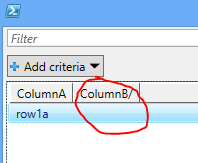
Powershell Out-GridView: Column title ending in slash ('/') causes values not to show

I was trying to spit out a DataTable in Out-GridView where the column headers happen to be URLs. I noticed that sometimes the values of the columns are not displaying in Out-GridView when the column title ends in a slash.

eg:

$dt = New-Object System.Data.DataTable
$dt.Columns.Add("ColumnA")
$dt.Columns.Add("ColumnB/")
$dt.Rows.Add("row1a", "row1b")
$dt | Format-Table -AutoSize
$dt | Out-GridView


The output of $dt | Format-Table -AutoSize is:

ColumnA ColumnB/
------- --------
row1a   row1b


The output of $dt | Out-GridView is:


It looks like there is a bug in GridView there. For now, I can append .Trim('/') to my column titles.

It looks like trailing whitespace is a problem too: https://windowsserver.uservoice.com/forums/301869-powershell/suggestions/11718579-out-gridview-fails-to-display-data-for-properties

Wednesday, October 7, 2015

SPBasePermissions enumeration - values in Int64, Hexadecimal, and Name


$t = [type]'Microsoft.SharePoint.SPBasePermissions'
[enum]::GetValues($t) | ForEach-Object {Write-Host "$($_): $([int64]$_) (0x$([Convert]::ToString([int64]$_,16)))"}

Haven't figured out a way to use Format-Table for this, but good enough for now.

Friday, April 10, 2015

Automatically capturing matching Failed Request Trace Logs

I was trying to troubleshoot a particularly challenging user identity issue with SharePoint and thought about using Failed Request Tracing which I will write about some other time.

While doing so, I wanted a way to grab the relevant fr*.xml files. I thought that it would streamline things if I could watch for these log files as they are created, run some filter against them and, if matched, copy the file to another folder (hopefully before the log rolls over).

Then I came across this post regarding "check folder for new files": https://social.technet.microsoft.com/Forums/scriptcenter/en-US/c75c7bbd-4e32-428a-b3dc-815d5c42fd36/powershell-check-folder-for-new-files
I adapted it to my purpose:

$destination = 'c:\Inetpub\Logs\FailedReqLogFiles\Temp'
$folder = 'C:\Inetpub\logs\FailedReqLogFiles\W3SVC2'

$filter = 'fr*.xml'
$fsw = New-Object IO.FileSystemWatcher $folder, $filter -Property @{
  IncludeSubdirectories = $false
  NotifyFilter = [IO.NotifyFilters]'FileName, LastWrite'
}

$onCreated = Register-ObjectEvent $fsw Created -SourceIdentifier FileCreated -Action {
  $path = $Event.SourceEventArgs.FullPath
  $name = $Event.SourceEventArgs.Name
  $changeType = $Event.SourceEventArgs.ChangeType
  $timeStamp = $Event.TimeGenerated
  $frlogfile = Get-Content $path
  $xml = [xml]$frlogfile
  $url = $xml.failedRequest.url
  Write-Host "The file $($name) was $($changeType) at $($timeStamp) with URL $($url)"
  if (***my matching conditions***) {
    Copy-Item $path -Destination $destination -Force -Verbose
  }
}

I definitely need to read up more on Get-Event, Get-EventSubscriber, Register-*Event cmdlets as well as the IO.FileSystemWatcher class. I think I could do some pretty cool stuff with them.


Monday, December 1, 2014

Unable to load one or more of the requested types. Retrieve the LoaderExceptions property for more information

I have been using the following Powershell to browse around some assemblies
$assembly = [Reflection.Assembly]::Load('myassembly')
$assembly.GetTypes()

Sometimes, I get the following exception:
Exception calling "GetTypes" with "0" argument(s): "Unable to load one or more of the requested types. Retrieve the LoaderExceptions property for more information."
At line:1 char:19
+ $assembly.GetTypes <<<< ()
    + CategoryInfo          : NotSpecified: (:) [], MethodInvocationException
    + FullyQualifiedErrorId : DotNetMethodException


To get at the actual error, I use the following:
$x = $Error[0]
$x.Exception.GetBaseException().LoaderExceptions

Then all I had to do was to load the assemblies that were listed and my initial Load() now works.

Wednesday, November 5, 2014

The query cannot be completed because the number of lists in the query exceeded the allowable limit.

I have recently come across an error where our code is calling GetSiteData with a query and was returning this error:
The query cannot be completed because the number of lists in the query exceeded the allowable limit. For better results, limit the scope of the query to the current site or list or use a custom column index to help reduce the number of lists.
I then built the following powershell to mimic our code in order test it:

$web = Get-SPWeb some-url

$query = New-Object Microsoft.SharePoint.SPSiteDataQuery
$query.Webs = '<Webs Scope="Recursive">'
$query.Query = "<Where><And><Eq><FieldRef Name='_ModerationStatus' /><Value Type='Number'>0</Value></Eq><BeginsWith><FieldRef ID='{03e45e84-1992-4d42-9116-26f756012634}' /><Value Type='Text'>0x0110</Value></BeginsWith></And></Where><OrderBy><FieldRef Name='PublishedDate' Ascending='FALSE' /></OrderBy>"
$query.ViewFields = '<FieldRef Name="_ModerationStatus"/><FieldRef Name="Title"/><FieldRef Name="ID" /><FieldRef Name="Permalink"/><FieldRef Name="PublishedDate"/><FieldRef Name="Body"/><FieldRef Name="NumComments"/><FieldRef Name="Author"/><FieldRef Name="ContentType"/><FieldRef Name="ContentTypeId"/>'
$query.Lists = "<Lists BaseType='0'/>"
$query.RowLimit = [uint32]::MaxValue

$web.GetSiteData($query)


From what I have read about the call to GetSiteData, when SharePoint performs the query, it takes into consideration the lists that match the criteria passed in the query. It then returns a DataTable with a limit of RowLimit rows. However, since we have not set a MaxListLimit the query simply fails at 1000 lists (instead of giving you the first 1000). There is a parameter we can change in the code $query.Lists = "<Lists BaseType='0' MaxListLimit='0'>" which will allow the query to consider over 1000 lists, however, I am not sure about the performance impact.

References:
SPWeb.GetSiteData method
SPSiteDataQuery.Lists property - see description of MaxListLimit


Thursday, October 2, 2014

Lists.asmx GetListCollections and GetListItems example

I recently had to get all items of a list as well as all lists in a SPWeb. This involved calling Lists.asmx. For the service description of Lists.asmx just go to /_vti_bin/lists.asmx

Get all lists for some SPWeb

$webUrl = 'some-web-url'

$credential = Get-Credential -Message "Enter your login for $($webUrl)"

$uri = [uri]"$($webUrl)/_vti_bin/lists.asmx"

$contentType = 'text/xml'
$bodyString = @"
<?xml version="1.0" encoding="utf-8"?>
<soap12:Envelope xmlns:xsi="http://www.w3.org/2001/XMLSchema-instance" xmlns:xsd="http://www.w3.org/2001/XMLSchema" xmlns:soap12="http://www.w3.org/2003/05/soap-envelope">
<soap12:Body>
<GetListCollection xmlns="http://schemas.microsoft.com/sharepoint/soap/" />
</soap12:Body>
</soap12:Envelope>
"@

$result = Invoke-WebRequest -Credential $credential -Method Post -Uri $uri -Body $bodyString -ContentType $contentType
$xml = [xml]$result.Content
$xml.Envelope.Body.GetListCollectionResponse.GetListCollectionResult.Lists.List

Get all list items for some list

$webUrl = 'some-web-url'
$listName = 'some-list-name'

$credential = Get-Credential -Message "Enter your login for $($webUrl)"

$uri = [uri]"$($webUrl)/_vti_bin/lists.asmx"

$contentType = 'text/xml'
$bodyString = @"
<?xml version="1.0" encoding="utf-8"?>
<soap12:Envelope xmlns:xsi="http://www.w3.org/2001/XMLSchema-instance" xmlns:xsd="http://www.w3.org/2001/XMLSchema" xmlns:soap12="http://www.w3.org/2003/05/soap-envelope">
<soap12:Body>
<GetListItems xmlns="http://schemas.microsoft.com/sharepoint/soap/">
<listName>$($listName)</listName>
<viewName></viewName>
<rowLimit>5000</rowLimit>
<query>
<Query xmlns="">
<OrderBy> <FieldRef Name="ContentType" /> </OrderBy>
</Query>
</query>
<viewFields><ViewFields xmlns="" /></viewFields>
<queryOptions>
<QueryOptions xmlns="http://schemas.microsoft.com/sharepoint/soap/">
<IncludeMandatoryColumns>FALSE</IncludeMandatoryColumns>
<IncludeAttachmentUrls>TRUE</IncludeAttachmentUrls>
<ViewAttributes Scope='RecursiveAll' IncludeRootFolder='True' />
<DateInUtc>TRUE</DateInUtc>
</QueryOptions>
</queryOptions>
</GetListItems>
</soap12:Body>
</soap12:Envelope>
"@

$result = Invoke-WebRequest -Credential $credential -Method Post -Uri $uri -Body $bodyString -ContentType $contentType
$xml = [xml]$result.Content
$xml.Envelope.Body.GetListItemsResponse.GetListItemsResult.listitems.data.ItemCount
$xml.Envelope.Body.GetListItemsResponse.GetListItemsResult.listitems.data.row | Format-Table ows_LinkFilename, ows_Author, ows_Created, ows_Modified -AutoSize

I could probably use New-WebServiceProxy and skip all the SOAP envelope stuff. However, this better mimics the code that I was trying to troubleshoot.


Monday, May 26, 2014

The solution cannot be deployed. The feature 'some-feature-id' uses the directory "some-directory" in the solution

I recently came across this error when trying to deploy a WSP:
The solution cannot be deployed.  The feature 'some-feature-id' uses the directory "some-directory" in the solution. However, it is currently installed in the farm to the directory "some-other-directory". Uninstall the existing feature before you install a new version of the solution.

Simple enough, I tried to do an Uninstall-SPFeature as well as Uninstall-SPFeature -Force both of which did not help. Finally someone tried stsadm -o uninstallfeature and then the subsequent WSP deploy worked. I guess Powershell and stsadm are not quite equivalent


Calling private member using reflection in Powershell

Often I have to put together some Powershell scripts for troubleshooting. These scripts are based on some c# code. Recently, I had to mimic the behaviour of a call to a private member overload of GetTags in the Microsoft.Office.Server.SocialData.SocialTagManager class.

$site = Get-SPSite my-site-url
$context = Get-SPServiceContext($site)
$socialTagManager = New-Object -TypeName Microsoft.Office.server.SocialData.SocialTagManager -ArgumentList $context

# Get the type definition
$type = [type]'Microsoft.Office.Server.SocialData.SocialTagManager'

# List the GetTags members
($socialTagManager | Get-Member GetTags).Definition.Replace("), ", ")`n")

This results in (just the public members):
Microsoft.Office.Server.SocialData.SocialTag[] GetTags(Microsoft.Office.Server.UserProfiles.UserProfile user)
Microsoft.Office.Server.SocialData.SocialTag[] GetTags(Microsoft.Office.Server.UserProfiles.UserProfile user, int maximumItemsToReturn)
Microsoft.Office.Server.SocialData.SocialTag[] GetTags(Microsoft.Office.Server.UserProfiles.UserProfile user, int maximumItemsToReturn, int startIndex)
Microsoft.Office.Server.SocialData.SocialTag[] GetTags(System.Uri url)


Now use Reflection

# Which methods to list
$bindingFlags = [Reflection.BindingFlags] "Default,NonPublic,Instance"

# List the methods
$type.GetMethods($bindingFlags) | Where-Object {$_.Name -eq 'GetTags'} | ForEach-Object {$_.GetParameters() | Select-Object Member -First 1}

This results in (both public and private members);
Microsoft.Office.Server.SocialData.SocialTag[] GetTags(System.DateTime, System.DateTime)
Microsoft.Office.Server.SocialData.SocialTag[] GetTags(System.DateTime, System.DateTime, Int32)
Microsoft.Office.Server.SocialData.SocialTag[] GetTags(System.DateTime, System.DateTime, Int32, Int32)
Microsoft.Office.Server.SocialData.SocialTag[] GetTags(System.Uri, Microsoft.Office.Server.UserProfiles.UserProfile, System.Nullable`1[System.DateTime], System.Nullable`1[System.DateTime])
Microsoft.Office.Server.SocialData.SocialTag[] GetTags(System.Uri, Int32)
Microsoft.Office.Server.SocialData.SocialTag[] GetTags(System.Uri, Int32, Microsoft.Office.Server.SocialData.SocialItemPrivacy)
Microsoft.Office.Server.SocialData.SocialTag[] GetTags(Microsoft.SharePoint.Taxonomy.Term[], Int32, Microsoft.Office.Server.SocialData.SocialItemPrivacy)
Microsoft.Office.Server.SocialData.SocialTag[] GetTags(Microsoft.Office.Server.UserProfiles.UserProfile, Int32, Int32, Boolean, System.Nullable`1[System.DateTime], System.Nullable`1[System.DateTime])
Microsoft.Office.Server.SocialData.SocialTag[] GetTags(Microsoft.Office.Server.UserProfiles.UserProfile, Int32, Int32, Boolean, System.Nullable`1[System.DateTime], System.Nullable`1[System.DateTime], System.Nullable`1[System.Guid])


Now to call a private member. Let's call: Microsoft.Office.Server.SocialData.SocialTag[] GetTags(System.DateTime, System.DateTime, Int32, Int32)


$startTime = [DateTime]'2014-05-01 00:00:00'
$endTime = [DateTime]'2014-05-31 00:00:00'
$maximumItemsToReturn = 1000
$startIndex = 0
$typeList = @([type]'DateTime', [type]'DateTime', [type]'Int32', [type]'Int32')
$method = $socialTagManager.GetType().GetMethod('GetTags', $bindingFlags, $null, $typeList, $null)
$terms = $method.Invoke($socialTagManager, [Object[]] @($startTime, $endTime, $maximumItemsToReturn, $startIndex))
$terms | Format-Table @{l='Term';e={$_.Term.Name}}, Title -AutoSize



Sunday, May 25, 2014

Get all features that define Site Settings links

Recently, I needed to find out where a particular link listed under Site Settings. Doing a bit of research on how to add links to a Site Settings page involves defining a CustomAction in the Elements.xml file with a Location of Microsoft.SharePoint.SiteSettings. Reversing this logic, we can find all Elements.xml files that contains a line Location="Microsoft.SharePoint.SiteSettings" and from there work backwards to get the SharePoint feature.

Here is a Powershell that does this:
Get-ChildItem -Recurse -Filter *.xml | Select-String -Pattern 'Microsoft.SharePoint.SiteSettings' | Group-Object path | ForEach-Object {$x = $_.Name; Get-SPFeature | Where-Object {$x -like "$($_.RootDirectory)*"}} | Format-Table Id, Scope, @{l='Title';e={$_.GetTitle(1033)}} -AutoSize

This script can easily be modified to find other menu items by changing the Select-String -Pattern to something else such as Microsoft.SharePoint.StandardMenu.

Tuesday, June 18, 2013

%systemdrive% in Powershell

I was just trying to write a script to manage IIS logs. I was able to get the log directory, but it comes back as  %SystemDrive%\inetpub\logs\LogFiles

Reading between the lines from a couple of posts, I found that I can use $env:SystemDrive in place of %SystemDrive%

So I can do something like this:
Import-Module WebAdministration
$website = Get-Website | Where-Object {$_.name -eq 'SharePoint - 443'}
$logfileDirectory = $website.logFile.directory -replace '%SystemDrive%', $env:SystemDrive
...

Wednesday, June 5, 2013

0x80070002 when adding web part using Powershell

I was adding a webpart using this powershell:
$webpart = New-Object Microsoft.SharePoint.WebPartPages.SilverlightWebPart
$wpm = $web.GetLimitedWebPartManager($page.Uri.OriginalString, "Shared")
$wpm.AddWebPart($webpart, 'Header', 0)

... and got this error:

Exception calling "AddWebPart" with "3" argument(s): "<nativehr>0x80070002</nativehr><nativestack></nativestack>"
At line:1 char:16
+ $wpm.AddWebPart <<<< ($webpart, 'Header', 0)
    + CategoryInfo          : NotSpecified: (:) [], MethodInvocationException
    + FullyQualifiedErrorId : DotNetMethodException


It turns out that my $page was the wrong one which was not checked out nor editable at the time.

Listing a page's web part zones

I have been trying to figure out a way to list all of a page's web part zones. There is not much documentation out there on this. Here's what I have been able to figure out. It is for a publishing web, but the procedure should be pretty much the same.

$myweburl
$mylayouttitle
$web = Get-SPWeb $myweburl
$pWeb = [Microsoft.SharePoint.Publishing.PublishingWeb]::GetPublishingWeb($web)
$layout = $pWeb.GetAvailablePageLayouts() | Where-Object {$_.Title -eq $mylayouttitle}
$layout.ListItem.Properties['vti_cachedzones']


And to list the webparts on a page:
$pageurl
$wpm = $web.GetLimitedWebPartManager($pageurl, 'Shared'
$wpm.WebParts | Format-Table -AutoSize WebBrowsableObject, ZoneId, ZoneIndex


There's also a post Determine which webpartzones are on a webpartpage that uses reflection to get at a private member however I have not gotten it to work.


Wednesday, April 17, 2013

Unable to retrieve topology component health states. This may be because the admin component is not up and running

I just installed SP2013 RTM on Win2k8R2 SP1 and SQL2012 Enterprise on a separate Win2k8R2 SP1 server. I used Powershell to provision my Search as follows:


$ssi = Get-SPServiceInstance | Where-Object {$_.TypeName -eq 'SharePoint Server Search'}
Start-SPServiceInstance $ssi
WaitForServiceInstance $ssi.TypeName
$searchAdminAppPool = Get-SPServiceApplicationPool -Identity $AppPoolSearchAdmin
$searchQueryAppPool = Get-SPServiceApplicationPool -Identity $AppPoolSearchQuery
New-SPEnterpriseSearchServiceApplication -Name 'Search Service Application' -ApplicationPool $searchQueryAppPool -AdminApplicationPool $searchAdminAppPool
New-SPEnterpriseSearchServiceApplicationProxy -Name 'Search Service Application' -SearchApplication (Get-SPEnterpriseSearchServiceApplication 'Search Service Application')
Set-SPEnterpriseSearchService -ServiceAccount $searchServiceAccount -ServicePassword (ConvertTo-SecureString -AsPlainText -Force $password)

When I go into manage my Search Service Application, I get the following error:
Unable to retrieve topology component health states. This may be because the admin component is not up and running

Figuring that I may have been missing some steps in my Powershell script, I tried unprovisioning my Search Service Application and reprovisioning using Central Administration. Still the same problem. Time to do some searches. Here is what I found.

http://office.microsoft.com/en-ca/help/sharepoint-server-2013-known-issues-HA102919021.aspx
http://social.technet.microsoft.com/Forums/en-US/sharepointitpropreview/thread/50acc2b8-dd56-4d5a-a660-dffa325ef807/?prof=required
http://leonzandman.com/2012/11/08/return-of-the-search-application-topology-component-health-state-error/
http://www.mavention.nl/blog/sp2013-installation-lessons-learned-part-1

After doing a lot of reading and considering the various CUs, I went back to my servers to try some of the suggested solutions. Lo and behold, search is working now. The only things I can infer from this is:

  1. Central Administration is doing something to provision Search that is missing from my Powershell script
  2. Some process took its time to execute
  3. Possibly some random factors like memory, etc.


As much as I would like to know the real answer, it is working now, time to move onto next problem.


Friday, April 5, 2013

Managing assemblies with Powershell

A simple way to access assemblies and see what's in them. Still a work in progress. I hope to add more tricks to this post soon.

Load in the assembly
$assembly = [Reflection.Assembly]::LoadFile($assemblyPath)
or
$assembly = [Reflection.Assembly]::Load($assemblyName)

Get details on a type defined in the assembly
$type = $assembly.DefinedTypes | Where-Object {$_.Name -eq $typeName}
$type.DeclaredConstructors | ForEach-Object {$_.ToString()}
$type.DeclaredMethods | ForEach-Object {$_.ToString()}

To load the assembly for use
Add-Type -Path $assemblyPath #if assembly in file
or
Add-Type -AssemblyName $assemblyName #if assembly in GAC
For some reason $assemblyName must be the full name contrary to the documentation in Add-Type

Get all assemblies in current AppDomain
[AppDomain]::CurrentDomain.GetAssemblies() | Select-Object FullName | Sort-Object FullName

References:
System.Reflection.Assembly class
Add-Type cmdlet
AppDomain class


Windows Azure storage through Powershell

This is just a first stab at manipulating Windows Azure Storage via Powershell.

Get Microsoft.WindowsAzure.Storage.dll using NuGet 
  1. Navigate to this by first going to the Windows Azure Downloads site.
  2. Select .NET. 
  3. Select Client libraries under Resources.
  4. Instructions on how to download Windows Azure Storage are found here. 
Here is the code I'm using to download files from blob storage

Param (
    [Parameter(Mandatory=$true)] [String] $StorageAccountName,
    [Parameter(Mandatory=$true)] [String] $AccessKey,
    [Parameter(Mandatory=$true)] [String] $BlobFilename,
    [Parameter(Mandatory=$true)] [String] $LocalFilename,
    [String] $StorageAccountEndpoint = "http://$storageAccountName.blob.core.windows.net/"
)

Add-Type -Path '.\Microsoft.WindowsAzure.Storage.dll'

$BlobFilename = $BlobFilename.Replace('%20', ' ').Trim('/')
$storageCredentials = New-Object Microsoft.WindowsAzure.Storage.Auth.StorageCredentials($StorageAccountName, $AccessKey)
$blobClient = New-Object Microsoft.WindowsAzure.Storage.Blob.CloudBlobClient($StorageAccountEndpoint, $storageCredentials)
$blob = $blobClient.GetBlobReferenceFromServer($BlobFilename)
$stream = New-Object System.IO.FileStream($LocalFilename, [System.IO.FileMode]::Create)
$blob.DownloadToStream($stream)
$stream.Close()


Monday, March 25, 2013

PowerShellPack TaskScheduler Remove-Task.ps1 Method invocation failed because [System.String] doesn't contain a method named 'DeleteTask'

I am using the Remove-Task cmdlet in the TaskScheduler module of PowerShellPack to manage some Task Scheduler tasks and getting this weird error:
Method invocation failed because [System.String] doesn't contain a method named 'DeleteTask'

So, I took a look at the code found at ...\Documents\WindowsPowerShell\Modules\TaskScheduler\Remove-Task.ps1 and found an error. The version I have looks like this at lines 53-58:


        switch ($psCmdlet.ParameterSetName) {
            Task { 
                $scheduler = Connect-ToTaskScheduler -ComputerName $ComputerName -Credential $Credential
                $folder =$scheduler.GetFolder("")
                $folder.DeleteTask($task.Path, 0)
            }

The problem is that there is a [String[]] $Folder = "" declaration earlier on in the code.

I changed it to the following and it looks like it works:
        switch ($psCmdlet.ParameterSetName) {
            Task { 
                $scheduler = Connect-ToTaskScheduler -ComputerName $ComputerName -Credential $Credential
                $taskfolder =$scheduler.GetFolder("")
                $taskfolder.DeleteTask($task.Path, 0)
            }

Coincidentally, the Get-ScheduledTask.ps1 cmdlet uses the same idea so the original author must have just missed this. The module looks like it hasn't been updated for quite some time.


Thursday, March 21, 2013

Bulk reset of passwords

Recently, I had to reset a whole bunch of passwords. This can be easily done via PowerShell.

$Excludes = @('user1', 'user2')
$Password = ConvertTo-SecureString -AsPlainText -Force 'mypassword'
$SearchBase = "OU=Some OU,DC=Some DC,DC=Some DC"

Import-Module ActiveDirectory

Get-ADUser -Filter * -SearchBase $SearchBase | Where-Object {$Excludes -notcontains $_.SamAccountName} | Set-ADAccountPassword -NewPassword $Password


Then to check what was done:

Get-ADUser -Filter * -Properties SamAccountName, PasswordLastSet | Select-Object SamAccountName, PasswordLastSet | Sort-Object PasswordLastSet -Descending

Extracting data from SQL Azure using Powershell

I have a SQL Website that is logging some debug output to a SQL Azure DB Linked Resource. In order to do some quick troubleshooting, I tried using the Manage interface in Azure, however it is lacking a way to export the data. I could manually copy and paste out database rows and columns, but that is a pain. I don't have SQL 2013 Management Studio and just want a lightweight way for me to access my databases.

I ended up doing this with Powershell:

$datasource=mydatasource
$database=mydatabasename
$userid=myuserid
$password=mypassword
$CommandText=some_sql_query


$connectionString = "Data Source=$datasource;Initial Catalog=$database;User ID=$userid;Password=$password;Trusted_Connection=False;Encrypt=True;Connection Timeout=30;"
$SqlCmd=New-Object System.Data.SqlClient.SqlCommand($CommandText)
$SqlCmd.Connection=New-Object System.Data.SqlClient.SqlConnection($ConnectionString)

$SqlAdapter=New-Object System.Data.SqlClient.SqlDataAdapter($SqlCmd)
$DataSet=New-Object System.Data.DataSet
$SqlAdapter.Fill($DataSet)
...
I can then get at the data through $DataSet.

I can also get the connection string though the Windows Azure console and go to SQL Databases, select my database, select "View SQL Database connection strings for ADO .Net, ODBC, PHP, and JDBC", copy the ADO.NET connection string, and replace "Server" with "Data Source", "Database" with "Initial Catalog", and "{your_password_here}" with my password.